How do I change an item's quantity?
Step One: Select the proper tool
Click on the 'Manage Inventory' link under the 'Inventory' heading in the control panel menu.
Step Two: Find the item you wish to edit
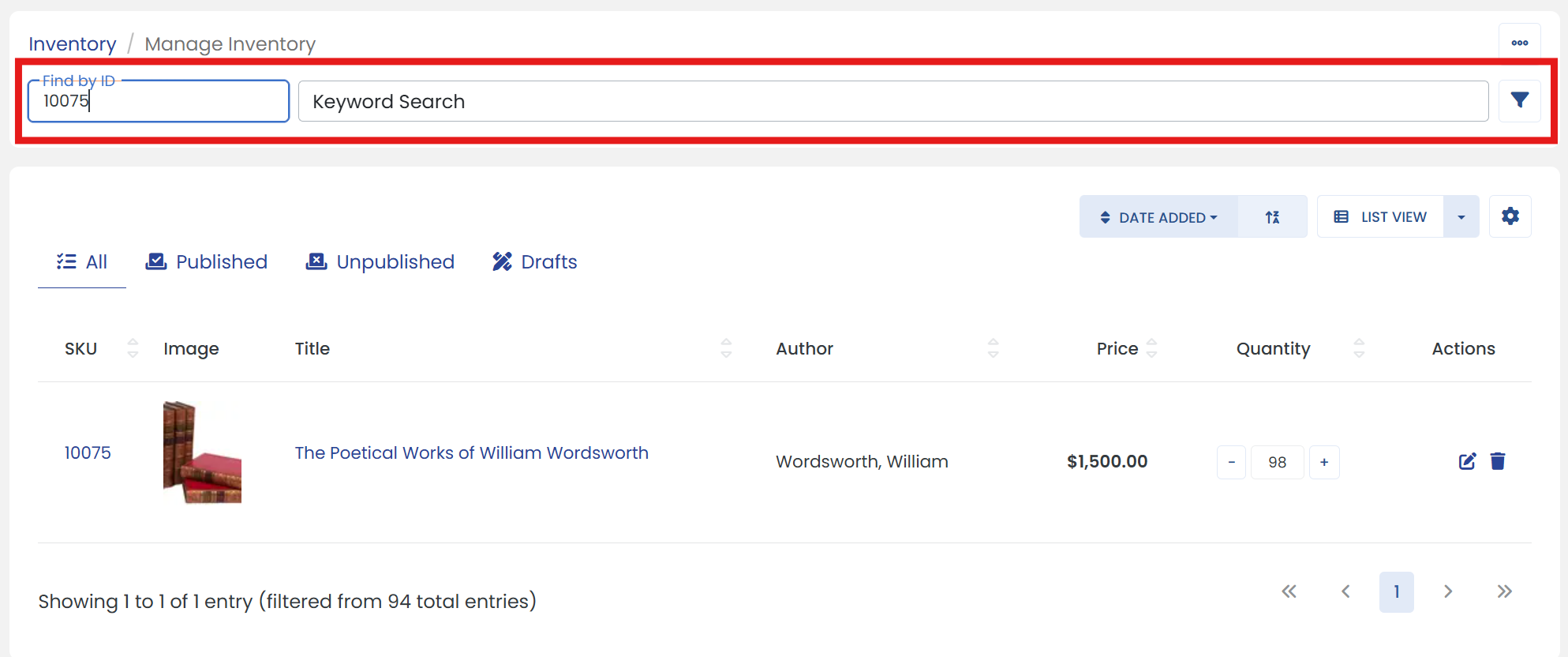
Use 'Find by ID' or 'Keyword Search' textbox to find the Item. (Or you can use 'filter' icon next to keyword search textbox for 'Advanced Search')
Step Three: Click the edit icon
Click the 'Edit' icon at the end of your item to go to it's settings page.
Step Four: Update the quantity
In the right column, edit your item's quantity in the 'Quantity' textbox. You can either enter value or click on up/down arrows inside to change the quantity.
Step Five: Don't forget to save
When you are finished editing your item, be sure to click the 'SAVE' button at the top to finalize.