How do I delete images?
Step One: Select the proper tool
Click the 'Images' link under the 'Inventory' heading in the Control Panel menu.
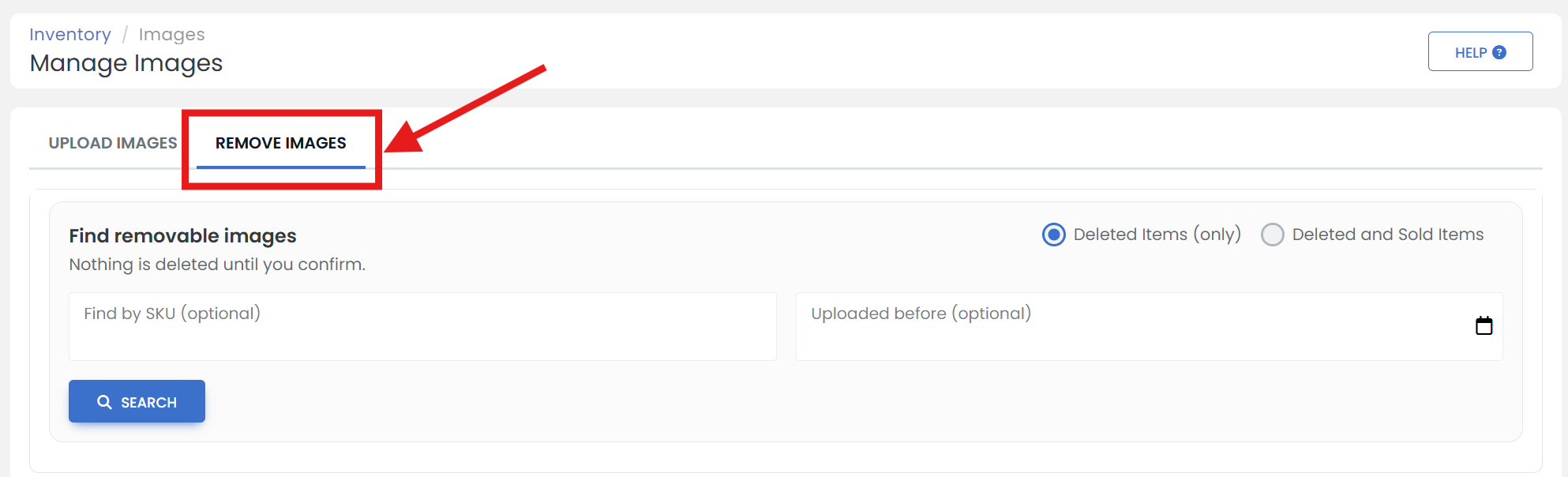
Step Two: Open the Remove Images Tab
Click the 'REMOVE IMAGES' tab.
Step Three: Review Unused Images
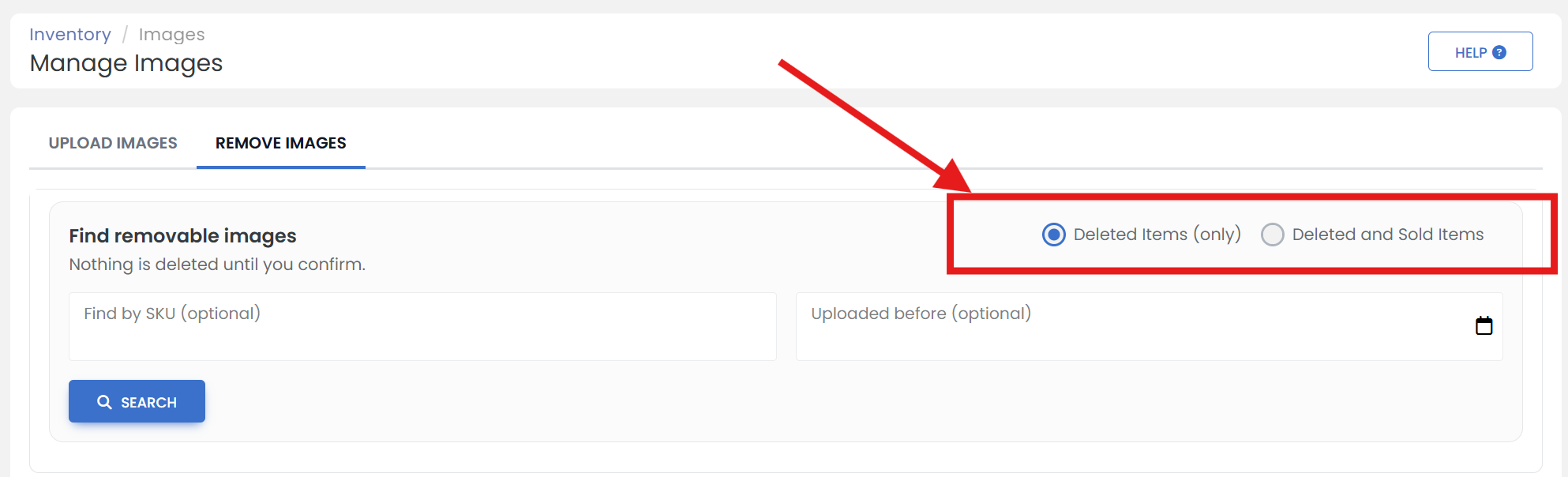
On this page you are able to find all the images that are no longer in use. You will be able to review each image before anything is deleted. Choose to search just your 'Deleted Items' or your 'Deleted and Sold Items'.
Step Four: Select a Date for Image Search
If for instance you'd like to delete all images of items sold or deleted over 2 years ago, Select the date you'd like to search before by clicking on 'calendar' icon.
This opens a calendar where you can select the specific date. Click 'OK' button to select.
Step Five: Start the Search
Click the 'SEARCH' button.
Step Six: Delete Images from the Server
Check all the images you would like to delete from the server & click the 'DELETE CHECKED' button, Or if you'd like to delete all the images within your search criteria, click the 'DELETE ALL...' dropdown menu and select 'Delete all images' option.